Set Up 2-Step Verification on Your Expedise Google Account
Here’s the step-by-step guide for turning on 2-Step Verification on your Google account:
1. Go to your Google Account (juan.delacruz@expedise.ph)
Open your gmail, and go to google service on the top right of screen.
2. Select the Account
Click Security (in the left menu, or tap it on mobile)
3. Open Security settings
Click Security & Sign-In (in the left menu, or tap it on mobile)
4. Start the setup
Under “How you sign in to Google,” click 2-Step Verification → Get Started
Note: You may be asked to re-enter your password to confirm it’s you
5. Choose your preferred method:
- Phone prompt – tap “Yes” on a notification sent to your phone (easiest option)
- Authenticator app (e.g., Google Authenticator) – scan a QR code to generate codes
- SMS or voice call – get a code sent to your phone
- Security key – a physical USB/NFC key, if you have one
6. Follow the on-screen prompts and Turn it on
Google will walk you through verifying your chosen method (e.g., entering the code sent to your phone)
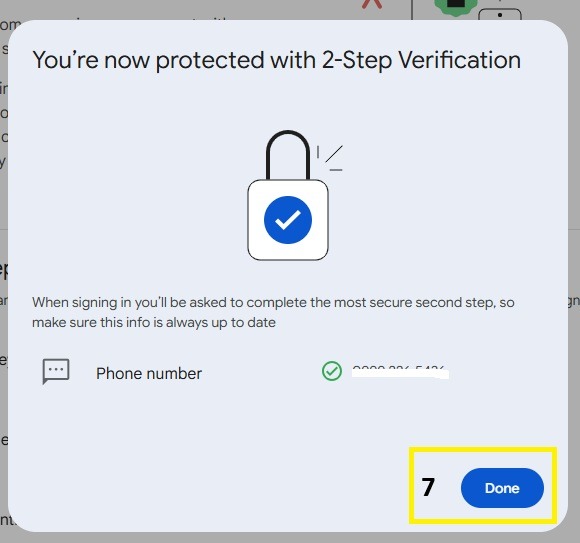
and click Turn On to finish
Important Notes
⏳ If you add a phone number, it can take up to 7 days for Google to fully “trust” it as a recovery method.
🔑 If you set up a passkey, it can bypass the second step entirely since it already proves device possession — passkeys can’t be stolen the way passwords can.